
5 Step Secure Document Workflow and When to Build a Custom System
Follow a 5-step workflow to share sensitive files securely. Learn the five platform-agnostic controls to apply and how to decide when to build a custom...

For most people and businesses, the right approach is an encrypted sharing link or secure portal with recipient authentication, a short expiry window, and access logging. Email attachments fail on all three counts, which is why they cause the majority of avoidable leaks. Reserve heavier tools like SFTP, managed file transfer, or client-side end-to-end encryption for regulated data, large files, or high-volume automated transfers.
TL;DR:
- Secure links or portals with recipient authentication and expiry are suitable for most collaborative sharing needs, offering audit trails and minimal friction.
- End-to-end encryption provides the strongest confidentiality but can be costly and impractical due to recipient software compatibility issues.
- Setting short default expiry periods, testing access revocation, and monitoring logs are critical steps often overlooked but essential for maintaining security.
- When sharing sensitive data like health records or GDPR-covered personal information, compliance requirements dictate the need for specific controls such as data processing agreements or HIPAA BAA.
- Building custom workflows may be necessary if off-the-shelf tools can't meet unique authentication, encryption, or automation demands, especially for regulated or highly confidential data.
Table of Contents
- Which Secure Document Sharing Methods Should You Use?
- What Security Controls Should Every Document Share Include?
- How Do You Share a Sensitive Document Securely?
- How Do You Choose a Secure Sharing Solution?
- When Should You Build a Custom Secure Sharing Workflow?
- How Should You Name Files and Handle Metadata Before Sharing?
- What Compliance Rules Apply When Sharing Sensitive Documents?
- How Do You Train Staff to Avoid Social Engineering Risks?
- Can DRM Control What Happens After You Share a Document?
- A Pragmatic Take on Security Versus Friction
- How Logicbranch Builds Secure Sharing Into Custom Software
- Sources
- FAQ
Which Secure Document Sharing Methods Should You Use?
There's no single "best" method. There's a best method for your file, your recipient, and how much you need to prove afterward that only the right person opened it. Here's how the five main approaches stack up.
- Secure link or portal: Low friction for both sides, strong audit trails, and per-recipient authentication options. This covers most collaborative sharing, from client contracts to HR documents. OneDrive's link types (anyone with the link, people in your organization, specific people) show the range of control you should expect from any comparable tool.
- Client-side end-to-end encryption: The strongest confidentiality guarantee available, because the provider itself can't read the file. Signal is the clearest consumer example. The catch is recipient friction. Both sides need compatible software, and integrating this into a business workflow costs more than most teams expect.
- SFTP, FTPS, and managed file transfer (MFT): Built for automation, audit, and volume rather than one-off collaboration. SFTP runs over SSH and suits scheduled, regulated, or high-volume transfers where a human clicking a link isn't practical. Platforms like MOVEit exist specifically to move large batches of sensitive files with logging built in.
- Secure upload widgets: Handy when you need third parties, vendors, or clients to send files to you, not the other way around. Good encryption and logging, minimal setup on the sender's side.
- Encrypted email attachments: Easy to use, weak everywhere else. Revocation is nearly impossible once a file leaves your outbox, and audit trails are thin to nonexistent.
What Security Controls Should Every Document Share Include?
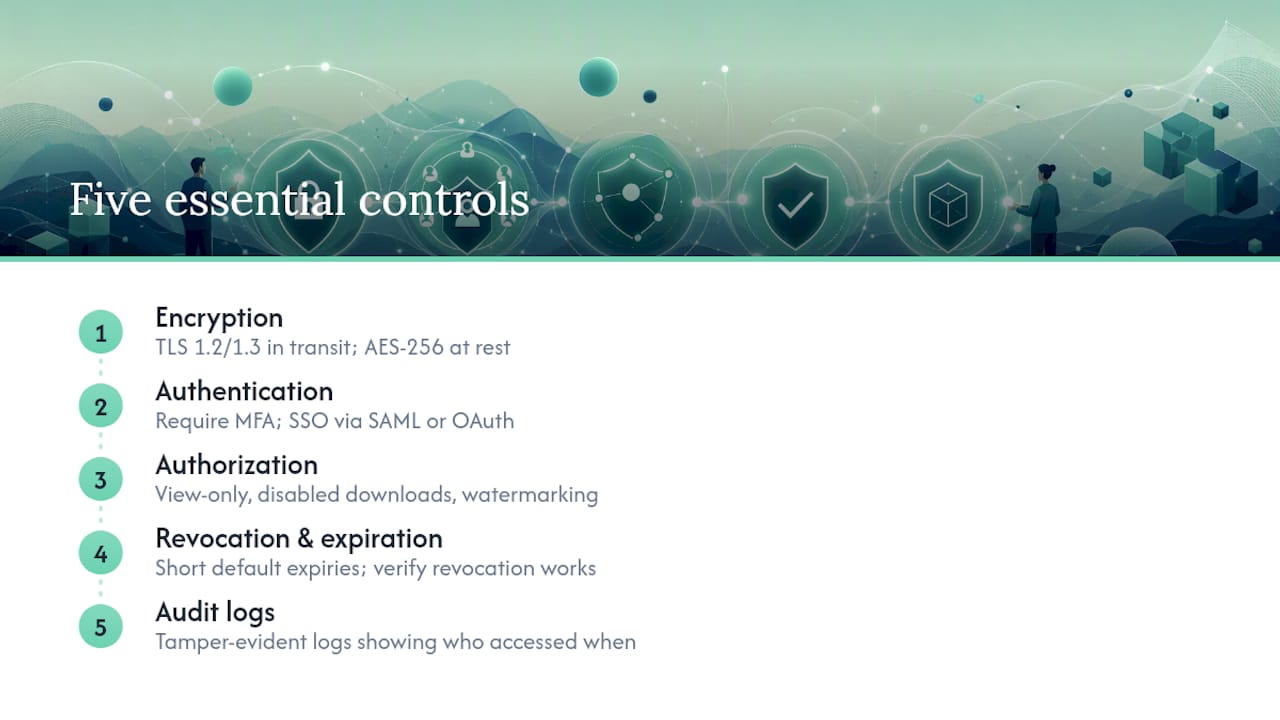
Whatever method you pick, five controls do the actual work of keeping a file safe. Skip one and you've created a gap, no matter how polished the tool looks.
Encryption in transit and at rest. Transit protection should run on TLS 1.2 or 1.3, and stored files should sit behind AES-256 encryption. If a provider can't tell you which standard they use in a sentence, that's a red flag, not a technicality.
Authentication. Anonymous links are the weakest point in most sharing setups. Require multi-factor authentication for anything sensitive, and use single sign-on (SSO via SAML or OAuth) for teams so access ties back to a real identity, not a guessed password.
Authorization and access rules. View-only mode, disabled downloads, watermarking, and device or browser locks all narrow what a recipient can actually do with a file once they've opened it.
Revocation and expiration. Set expiries short by default, then test that revoking access actually works before you rely on it in a real transfer.
Audit logs. Tamper-evident logs are your only real proof of who accessed a file and when, which matters as much for internal accountability as for external threats.
Pro Tip: Set every new link to expire in 7 days by default, then extend it manually if a project runs long. It's far easier to grant more time than to chase down a link you forgot was still live.
Microsoft's guidance on sensitivity labels and external sharing controls is a reasonable baseline for what "properly governed" sharing looks like inside a team environment, even outside Microsoft's own ecosystem.
How Do You Share a Sensitive Document Securely?
Treat every sensitive share as a five-step process, not a single click. Skipping steps is how "just send it over" turns into an incident report.
- Classify the document. Decide how sensitive it actually is, then strip identifying metadata (author names, comments, tracked changes, GPS data in images) that doesn't need to travel with the file.
- Lock the format. If the recipient doesn't need to edit it, convert to a locked PDF. Add password protection or envelope encryption for anything regulated or highly confidential.
- Choose delivery and set the rules. Pick a secure link, portal, or SFTP transfer depending on the case, then turn on recipient authentication (MFA or email verification) and restrict the link to that recipient only.
- Enable logging and expiry, then test it. Set a short expiry window and confirm access from a second device before you consider the setup done. A control you haven't tested is a guess.
- Follow up and revoke. Confirm the recipient actually opened the file, check the log for anything odd, and revoke or rotate the link once the need for access has passed.
That last step is the one almost everyone skips. Links get created, used once, and forgotten, sitting open for months after anyone needed them. A stale link with no expiry is functionally the same risk as an email attachment, just with better branding.
How Do You Choose a Secure Sharing Solution?
Evaluating a tool or building a workflow comes down to five categories. Walk through these before you sign a contract or greenlight a build.
- Security architecture: Does encryption happen client-side or only on the server? Who holds the keys, and does the provider offer a zero-knowledge option where they genuinely can't read your files?
- Integration and workflow fit: Check for APIs, SSO support, and whether the tool can automate document lifecycle steps (creation, sharing, expiry, archival) instead of requiring manual babysitting.
- Operational controls: Confirm audit logging, revocation, watermarking, and any data loss prevention (DLP) integration actually work the way the sales page claims.
- Compliance and assurances: Look for SOC 2 or ISO 27001 certification, clear data residency options, and contract language that spells out how your data is handled, not just where it's stored.
- Usability for the recipient: A tool that's secure but adds five extra steps for your client will get worked around. Friction is a security risk, not just a UX complaint.
When Should You Build a Custom Secure Sharing Workflow?
Off-the-shelf tools cover most needs. They stop covering them when you need authentication tied to your own identity system, client-side encryption baked into a proprietary workflow, or key management that a generic SaaS platform simply wasn't built to support.
The architecture decisions that matter most in a custom build are where encryption keys are generated and stored, how revocation actually works under the hood (a simple access-control flag versus real cryptographic key rotation), and whether integrations preserve end-to-end protection all the way through automated downstream steps, rather than quietly decrypting somewhere in the middle.
That's the trade-off in plain terms: cost and build time against full ownership of your keys, your data, and how the workflow actually behaves. Some companies have built AI-native document workflows in this space, including e-signature and document platforms like ksign.co, which reflect integrated, security-first designs.
How Should You Name Files and Handle Metadata Before Sharing?
A file name can leak almost as much as the file itself. "Q3_Layoffs_Draft_Final_v3.docx" tells anyone who glimpses it more than you'd want, whether it lands in a shared inbox, a screen-share, or a cloud sync folder that briefly shows the file name before you've opened it.
Use neutral, non-descriptive names for anything sensitive. Reference numbers or project codes work better than plain-language titles that describe the contents. "Project_Falcon_0442.pdf" gives away nothing to someone who isn't supposed to see it.
Metadata is the quieter risk. Word and PDF files routinely carry author names, edit history, comments, company details, and sometimes the exact software version used to create them. Photos carry GPS coordinates by default on most phones. Before sending anything sensitive, strip this data using your document tool's built-in inspector (Word's "Check for Issues" or a PDF editor's metadata cleaner does this in seconds).

Folder structures leak too. A shared drive folder named "Legal Settlement Docs" broadcasts its contents to anyone who can see the folder tree, even without opening a single file. Name folders as neutrally as the files inside them, and double check that a generic file name inside a specific folder hasn't just recreated the same problem one level up.
What Compliance Rules Apply When Sharing Sensitive Documents?
If a document contains personal data covered by GDPR, or health information covered by HIPAA, the sharing method itself becomes a compliance decision, not just a convenience choice.
Under GDPR, personal data shared with anyone outside your organization needs a legal basis, appropriate security measures, and, in many cases, a data processing agreement with whatever platform handles the transfer. Cross-border transfers add another layer. Sending EU personal data to a server outside the EU without proper safeguards can violate the regulation even if the transfer itself was otherwise secure.
HIPAA works similarly for protected health information. Covered entities and their business associates need a signed Business Associate Agreement with any third-party platform handling PHI, plus encryption and access controls that meet the HIPAA Security Rule's standards. A consumer-grade file sharing tool with no BAA option is off the table for this use case, no matter how good its encryption looks on paper.
The practical rule: know what category your document falls into before you pick a sharing method. A general business contract and a patient record don't belong in the same tool, and treating them the same is how compliance gaps happen. When in doubt, involve legal or compliance staff before the file leaves your hands, not after someone asks where it went.
How Do You Train Staff to Avoid Social Engineering Risks?
Most document leaks don't start with a broken encryption algorithm. They start with someone convincingly asking for a file they shouldn't have.
Phishing attempts targeting document sharing usually mimic a familiar tool: a fake "you've been shared a file" email that looks identical to a real notification, pointing to a credential-harvesting page instead of the actual document. Train staff to check the sender's actual email address, not just the display name, and to hover over links before clicking rather than trusting the button text.
Pretexting is the other common angle: someone calling or emailing pretending to be a client, vendor, or even a coworker under pressure, asking for a document "urgently" outside normal channels. The fix isn't suspicion of every request. It's a simple habit: verify unusual or urgent requests through a second channel, like a phone call to a known number, before sending anything sensitive.
Run short, recurring training rather than a single annual session. A five-minute refresher every quarter on what a fake sharing notification looks like sticks better than a slide deck people forget by the following week. Pair it with a clear internal policy: sensitive documents only go out through approved channels, never as a favor over personal email or chat apps, no matter who's asking.
Can DRM Control What Happens After You Share a Document?
Encryption protects a file in transit and at rest. It does nothing once the recipient has opened it and decided to forward, print, or copy the contents elsewhere. That's the gap Digital Rights Management (DRM) and Information Rights Management (IRM) are built to close.
IRM tools, common in enterprise document platforms, let you attach permissions directly to the file rather than just to the link that delivered it. You can disable printing, block copy and paste, expire access to a document even after it's been downloaded, and restrict opening to specific authenticated users regardless of where the file physically ends up.

This matters most for documents that need to survive outside your controlled environment, like a contract sent to an external partner or a financial report shared with an investor. A secure link protects the delivery. IRM protects the document itself, for as long as it exists.
The trade-off is friction and lock-in. Recipients sometimes need a specific viewer or plugin to open protected files, and DRM systems tied to one vendor's ecosystem can create headaches if you switch platforms later. Reserve it for documents where the cost of leakage clearly outweighs the extra step for your recipient, not as a default on every file you send.
A Pragmatic Take on Security Versus Friction
Most incidents don't come from exotic attacks. They come from skipped basics: no MFA, no expiry, no one checking the log afterward. Small teams should nail those three before touching anything fancier.
Larger organizations need to go further, adding real key management and automation on top. Either way, test the actual workflow you land on, and treat your access log as the tool you check first, not the one you remember only after something goes wrong.
— Josh
How Logicbranch Builds Secure Sharing Into Custom Software
When a generic portal or link tool doesn't fit your compliance requirements, your existing identity system, or the way your team actually works, that's the point where a bespoke build starts to make more sense than another subscription. Some providers build AI-native document and e-signature workflows, including platforms like ksign.co, designed for teams that need real integration rather than a workaround stitched on top of an off-the-shelf tool.
The typical starting point is a discovery call to map your actual workflow and data sensitivity, followed by a working prototype before anything goes into production. That sequence matters more than it sounds. It means you see how authentication, encryption, and access controls behave in your specific setup before committing to a full build, rather than discovering the gaps after go-live. If your current sharing setup is creating manual work, compliance risk, or one too many workarounds, reach out to Logicbranch to talk through what a purpose-built version would actually look like for your team.
Sources
For protocol and product specifics, see Microsoft's collaboration guidance, the SFTP protocol overview, and Signal's encryption model. Teams evaluating collaboration platforms more broadly may also find shared workspace features useful for comparison.
- Set up secure collaboration with Microsoft Teams – Microsoft Learn
- OneDrive online cloud storage – Microsoft
- Signal download
FAQ
Is a Password-Protected PDF Enough for Secure Document Sharing?
A password-protected PDF is better than nothing, but it lacks expiry, revocation, and audit logging, so it shouldn't be your only control for genuinely sensitive files.
Does the Recipient Need Special Software to Open a Secure Link?
No, most secure link and portal systems work through a standard browser, though end-to-end encrypted tools like Signal do require compatible software on both ends.
How Quickly Can You Revoke Access to a Shared File?
Access through a secure link or portal can typically be revoked instantly, which is one of the clearest advantages over an email attachment that's already left your outbox.
What's the Best Method for Sharing Very Large Files Securely?
SFTP or a managed file transfer platform handles large files better than link-based sharing, since it's built for automation, batch transfers, and detailed logging.
Do I Need a Business Associate Agreement to Share Health Records?
Yes, HIPAA requires a signed Business Associate Agreement with any third-party platform handling protected health information, regardless of how strong its encryption is.

API-First Design: What It Is and How to Apply It
API-first design means agreeing the API contract before building anything. See how it works, when it beats code-first, and how Australian businesses can use it.

Tokenization vs Encryption: How to Choose for Your Data
Tokenization and encryption protect data in different ways. Learn how each works, how they compare with masking and hashing, and which fits your Australian business.